

The guide to seamless tracking
You’ve spent hours creating a beautiful e-learning module in Articulate Rise or Storyline. But when it’s time to upload it to Moodle / Moodle Workplace, things go wrong:
- Grades don’t report back
- The activity never shows as “completed”
- Learner gets stuck in review mode
Before diving into settings, remember one key idea:
Moodle does not guess your pedagogical intention. It only interprets the data sent by your SCORM module.
Successful tracking depends on the alignment of three layers:
- The module decides what to send (status, score, etc.)
- The SCORM API transports that information
- Moodle decides how to interpret it (grade, progress, completion)
When these three layers align, SCORM tracking becomes simple and reliable.
1. What is a “SCORM package”?
You don’t need to be a developer to understand SCORM. Think of it as a container: the .zip file that contains your entire course.
For Moodle / Moodle Workplace to open and interpret it, the package must include one essential file: imsmanifest.xml.
This file tells Moodle:
- Which file to launch
- How the module is structured
Why SCORM packages sometimes fail
Most issues come from a simple packaging mistake:
- The manifest file isn’t at the root of the ZIP
- The package was compressed incorrectly
- The file structure is corrupted
TIP : Always zip the contents of the publishing folder, not the parent folder. Authoring tools normally compress modules at the correct level.
2. Understand the tracking logic before publishing
Before even opening Moodle / Moodle Workplace, ask yourself one question:
What type of validation should appear in the LMS?
In practice, Moodle interprets SCORM according to two main logics:
-
- Validation by progression → Completed status
- Validation by performance → Passed status
Your authoring tool translates these into reporting statuses.
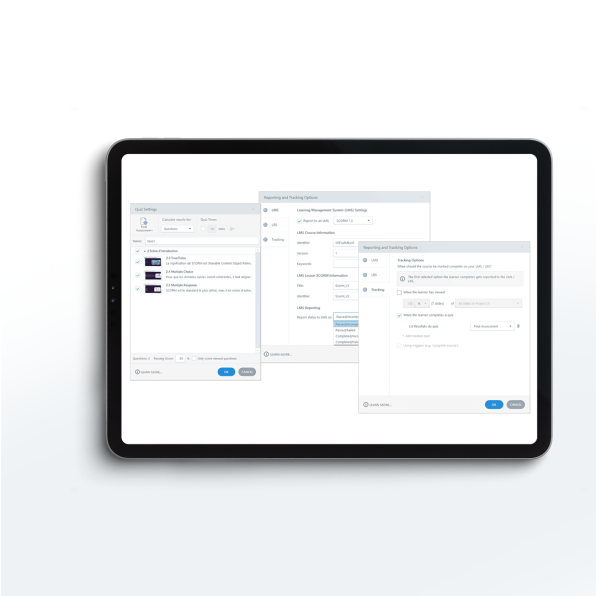
2.1 Reporting Status: What message should be sent to Moodle?
Most authoring tools offer four reporting combinations. While the first two are the most common, the others can also be useful in certain situations:
|
Status |
When to use it? |
Effect in Moodle |
|
Passed / Incomplete |
Quiz or score-based validation |
Activity becomes “Passed” or remains “In progress” |
|
Completed / Incomplete |
Simple content consumption |
Activity becomes “Completed” |
|
Passed / Failed |
Strict exams |
If the learner fails, the “Failed” status is sent. This can sometimes block a second attempt depending on settings. |
|
Completed / Failed |
Rare use cases |
Indicates the learner finished the course but did not reach the required score. This is rarely used as it can confuse learners. |
Important : The module decides the status. Moodle only interprets it.
2.2 Often “Hidden” but Essential Settings
Some parameters may look technical, but they are critical for reliable tracking:
Tracking criteria: You must define when the module sends the completion status.
Common options:
- Progress-based completion (example: 90% slides viewed). Simple, but learners may skip slides plus optional slides can cause issues.
- Quiz-based completion > often the most reliable option
- Trigger-based completion (Storyline) where you decide that a specific event sends the “Completed” status to the LMS.
SCORM version:
- SCORM 1.2 is usually the most stable and compatible option in Moodle for standard tracking (status and score).
- SCORM 2004 can be useful for advanced sequencing scenarios or larger suspend data, but it’s rarely necessary for standard Rise or Storyline modules.
Did you know? If you choose Passed/Failed, some LMS platforms treat failure as final. To allow learners to retry without pressure, Passed/Incomplete is often a better option.
3. Configuring Moodle
Once the SCORM module sends its data, Moodle / Moodle Workplace decides:
- Whether it becomes a grade
- Whether the activity is completed
- Whether progress is recorded in a learning path or certification (Moodle Workplace)
The settings below do not change your SCORM module. They only control how Moodle interprets the information.
Scenario A: Validation by progression
Objective : “I want my learners to review the content.”
System logic: « Completed » status
- Grading method: Choose Learning objects
- Activity completion: Check both Passed and Completed
Why? If the module does not send a grade, Moodle should not expect a grade that doesn’t exist.
Scenario B: Validation by performance
Objective : “I want to report a quiz score.”
System logic: « Passed » status
- Grading method: Choose Highest grade
- Let the module send the score from the results slide
- Activity completion: Check Passed (and Completed if necessary)
Practical tip: Checking both “Passed” and “Completed” covers most authoring tools. If your course requires a strict minimum score (for example a Workplace certification), prefer “Passed” only.
4. The Classic trap: mastery score
In the SCORM activity settings, you will find an option called:
“Mastery score overrides status”
Recommended setting:
NO — except in very specific cases
Why?
This option may force Moodle to apply its own rule, even if the SCORM module already sends a correct status.
Possible side effects:
- Automatic switch to review mode
- Learners unable to improve their score
- Inconsistent attempt tracking
- Inconsistencies in attempts
Only enable it if your module does not properly send status information.
5. Attempts and learner behaviour
A « Passed/Failed » status can influence how attempts are handled:
- New attempt allowed
- Attempt blocked
- Review mode
In Moodle Workplace, this may even impact certifications or learning paths. A poorly configured SCORM status can block progression, even if the activity appears completed.
Always test:
- New attempt
- Reset attempts
- Behaviour after passing
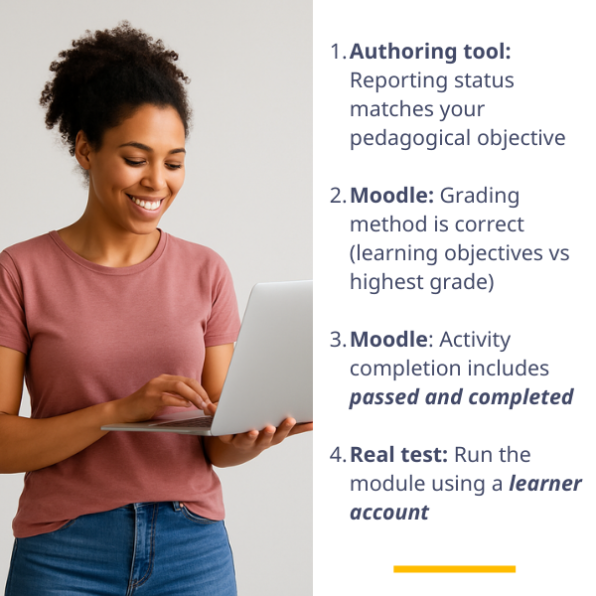
6. Final checklist before launching the course
Before sending the invitation to your 500 learners, please refer to the adjacent image.
Important: Never test with an Administrator account. Administrators have “superpowers” that distort SCORM tracking results. Take two minutes to create a simple learner account instead.
7. Working with external vendors?
If external vendors create your SCORM modules, include technical parameters in your project specifications.
Define:
- Expected reporting status
- Required SCORM version
- Validation logic (progression or performance)
Doing so prevents 80% SCORM integration issues before they happen.
Summary:
A SCORM package works properly when three elements speak the same language:
- The module decides what information to send
- The API transmits that information
- Moodle interprets it to determine completion, grades, and progress
When these three layers are aligned, integration becomes smooth—and learners experience a clear and consistent learning journey.
If you want to test your SCORM packages and better understand how they behave, the SCORMCLOUD platform is a useful tool for analysing the tracking data your modules send to an LMS.
And if you’re unsure about a specific Storyline or Rise parameter, feel free to contact us. We’d be happy to help you decide what your SCORM module is really telling Moodle.