By Fiona Quinn – Learning Solutions Consultant, Enovation
Practical Steps for Moodle and Totara Site Owners
Both Moodle and Totara are designed to meet WCAG 2.1 Level AA standards out of the box. However, themes, third-party plugins, and inconsistent content practices can undermine compliance with the new EAA Accessibility legislation (Directive (EU) 2019/882).
Here’s how to make sure your Moodle or Totara platform meets EAA requirements and delivers a better learning experience for everyone.
1. Start with an Accessibility Audit
Assess your LMS against WCAG 2.1 AA using both automated and manual testing:
Automated tools:
Use an automated tool like BrowserStack, Axe or Wave to identify:
- Low colour contrast
- Missing alt text
- Non-keyboard-accessible navigation
- Focus traps or missing focus indicators
- Incorrect heading structures
- Non-Descriptive Links
- Missing Video Captions
Manual testing:
- Use screen readers like NVDA, JAWS, or VoiceOver
- Test keyboard-only navigation (Tab, Shift+Tab, Enter, Esc)
- Check colour contrast – example: WebAIM Contrast Checker
Audit content:
- Test images for alt text
- Check that headings used semantically (not just bold text)?
- Check that videos are captioned or transcribed
- Note – eBooks are included in the legislation so ideally should be included for testing under the content umbrella.Compliance isn’t measured as a score, it is about meeting required success criteria.
2. Review theme and plugin compliance
Theming
Themes in Moodle and Totara define the visual design, layout, and navigation of your LMS platform. While the core LMS frameworks (Moodle’s Boost / Totara’s base theme) are designed to meet WCAG 2.1 AA, custom or third-party themes, as well as branding, often introduce accessibility problems that can compromise overall compliance.
Plugins
Plugins (add-ons, blocks, activities, and integrations) extend functionality but they can also introduce design, coding, and usability inconsistencies for learners using assistive technologies. Similar to other accessibility issues it is recommended that you audit all installed plugins and identify accessibility blockers early.
3. Develop a Compliance Plan
After your audit:
- Prioritise critical fixes (navigation, login, course pages)
- Assign responsibilities and create a timeline/project plan
- Decide on cadence and schedule re-audits to track progress
4. Publish an Accessibility Statement
Businesses must display an accessibility statement outlining their commitment and efforts towards accessibility. Developing an Accessibility Statement, by W3C outlines what should be included in an accessibility statement. It is advisable to include any known limitations, to avoid frustration of your users.
5. Maintain Continuous Updates and Training
Accessibility is a shared responsibility. Train your administrators, designers, and course creators to:
- Understand accessibility issues and adopt best practices
- Recognise and fix common accessibility issues
- Use assistive tools during testing
- Keep up with evolving WCAG standards
Accessibility is an ongoing process:
- Re-test after theme or plugin updates
- Monitor new releases for accessibility changes
- Update your accessibility statement and training materials regularly
Practical solutions from Enovation
Auditing Content
The Brickfield toolkit and TinyMCE editor can be leveraged to check content for accessibility issues.
The Brickfield Accessibility Toolkit is Moodle’s built-in accessibility auditing and remediation system, designed to help course creators, administrators, and compliance teams identify and fix accessibility issues in learning content. The Toolkit doesn’t just flag issues, it teaches users how to resolve them. Each issue includes an explanation of what’s wrong, why it matters, and how to fix it using Moodle’s standard tools.
The TinyMCE accessibility checker, which comes with a premium subscription, enables content authors to easily check for accessibility problems using an in-editor dialog, learn about the issue and remedy.
Certified Integrations
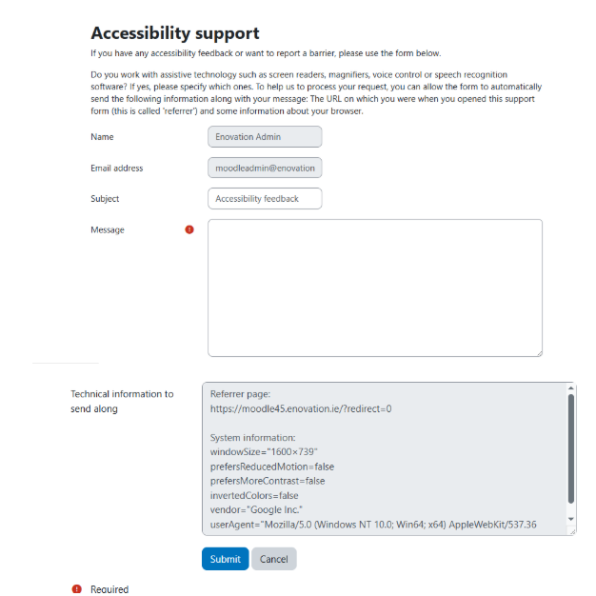
ReadSpeaker is a Certified Moodle integration which seamlessly integrates Text to Speech providing high-quality, natural-sounding voices directly within the Moodle environment, supporting accessibility and accommodations for all learners, even in assessments.
It is simple to implement and gives students UDL-enhanced content and accessibility tools at their fingertips, directly within the Moodle® environment. By integrating ReadSpeaker’s advanced voice technology into our Moodle learning platforms, we’re empowering organisations and institutions to create more inclusive, engaging learning experiences.
Moodle Theme – Boost Union
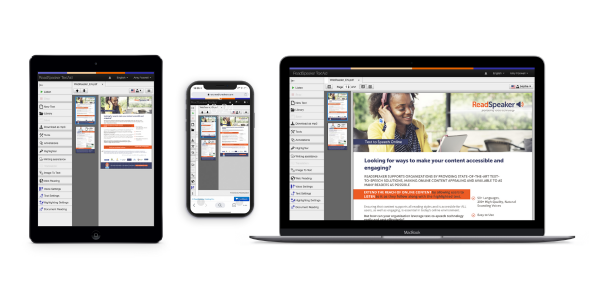
For Moodle one solution is to explore the Boost Union theme. Boost Union is a child theme of the base Moodle Boost theme, known for being WCAG certified. Boost Union follows a design principle of being configurable and disabled by default. This allows administrators and users to choose and enable only the accessibility features they need. This approach ensures that the theme doesn’t hinder accessibility for everyone by imposing unnecessary or conflicting features. Boost Union provides a facility for users to report accessibility issues and a facility to devise and display an accessibility statement.
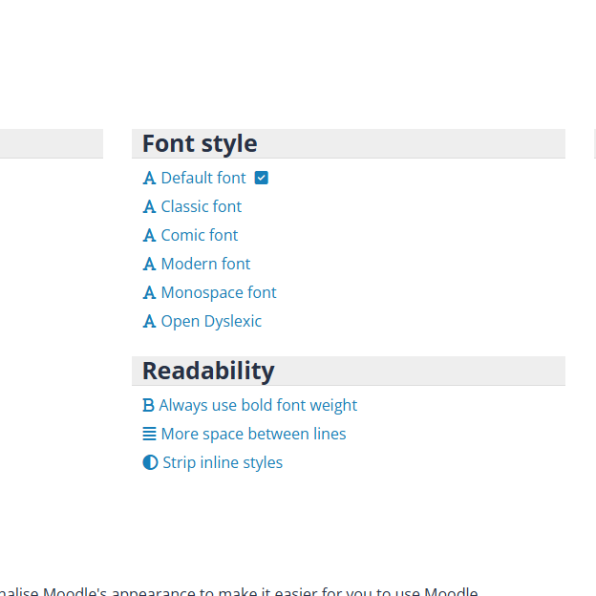
Accessibility plugins – Moodle-local_accessibilitytool.
This provides configuration options for the user to change colour scheme, font style, readability and text size across the whole site. This benefits all users, including those with disabilities.
Plugins
When addressing issues with plugins:
- Contact plugin developers and request accessibility statements or updates
- Use Moodle/Totara’s Accessibility Conformance Reports (ACRs) to validate core platform compliance
- Avoid redundant or outdated plugins Reduce maintenance overhead
- Conduct manual testing before go-live to confirm real-world usability
Accessibility Statement
EAA Statement Generator – AA Accessibility Statement Template, Tool, Example, and Requirements.